
Help center
How can we help?
Short, to-the-point guides and 30-second videos for everything in IDEAblox Time Clock.
Getting started
The first 3 things to set up to start clocking in
Let’s get your team clocking in and out. There are three things to do:
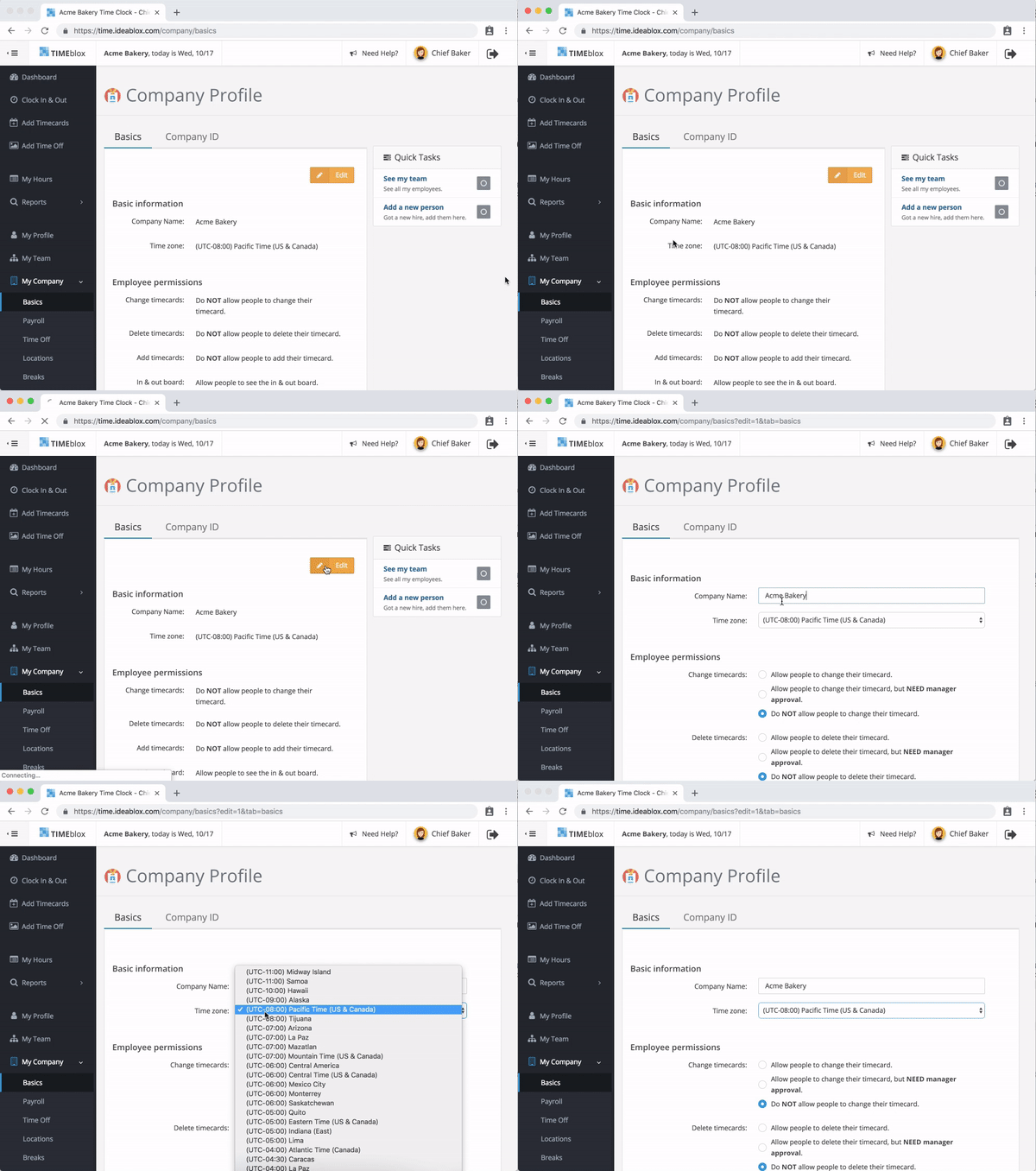
- Set up your company name and time zone on the Company Profile page.
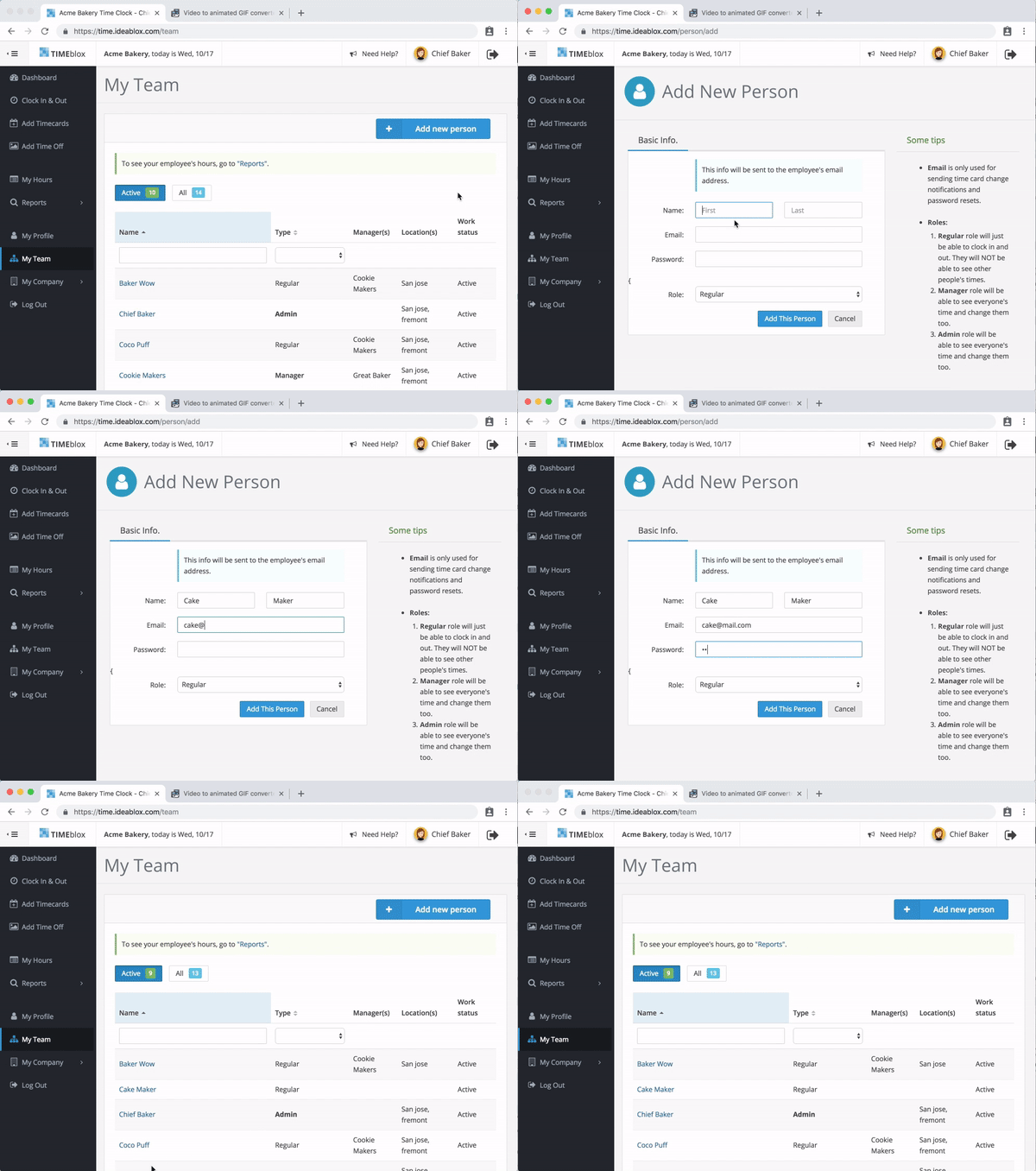
- Add your employees on the My Team page. Email is only used to send new-account info and password resets — if someone doesn’t have one, you can use your own.
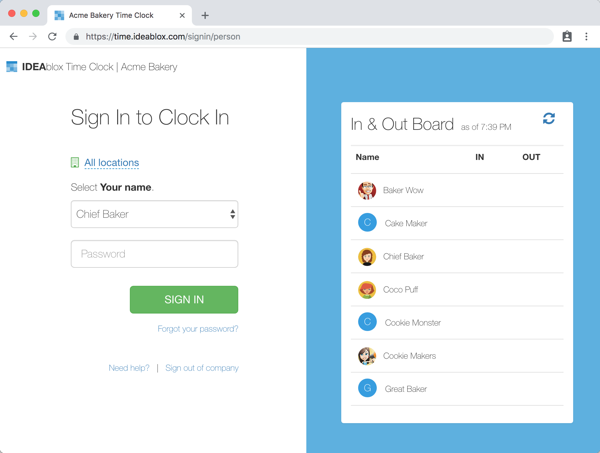
- Log into the company account with your admin email on the computers you want people to clock in at. They’ll then see their names in the dropdown to log in as themselves.
That’s it — they’re ready to go.
How to get employees to start clocking in
Employees clock in from the computers you’ve logged into first as the admin. That way, people can’t clock in from home or somewhere they’re not supposed to.
How to add a new employee
Log in as the admin and go to the My Team page to add new employees.
Try the app with our demo account
Take a quick test run with our demo account — go in as an admin or a regular employee, clock in and out, and see payroll reports.
- Go to time.ideablox.com.
- Log into the company as acmebakery with password 1111.
- Use the dropdown to log in as a user. For admin pages, pick Chief Baker (password 1111); for a regular employee, pick anyone else (password 1111).
Prefer a walkthrough? Email us at info@ideablox.com and we’ll happily get on the phone.
Signing in
How to log into the time clock app
There are two steps:
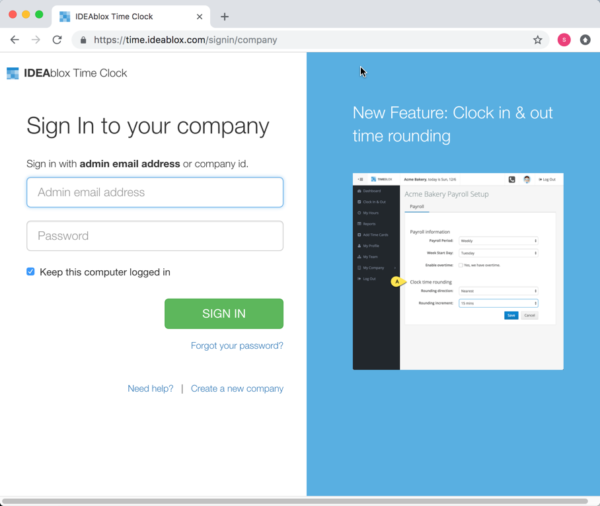
- The admin logs into the company account first. This only has to be done once — the browser remembers it afterward.
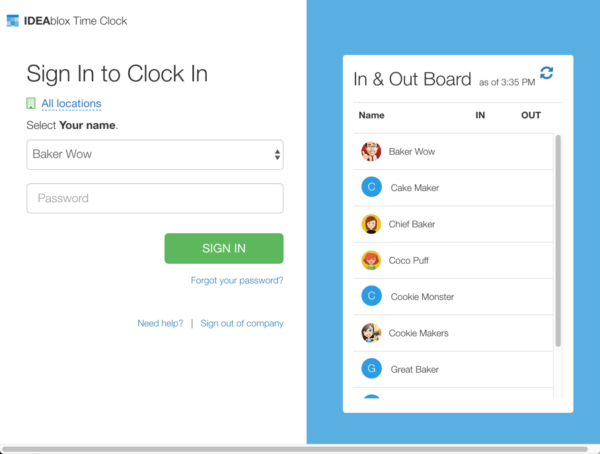
- Once the company is logged in, pick your name from the dropdown on the employee sign-in page.
How to keep employees logged in
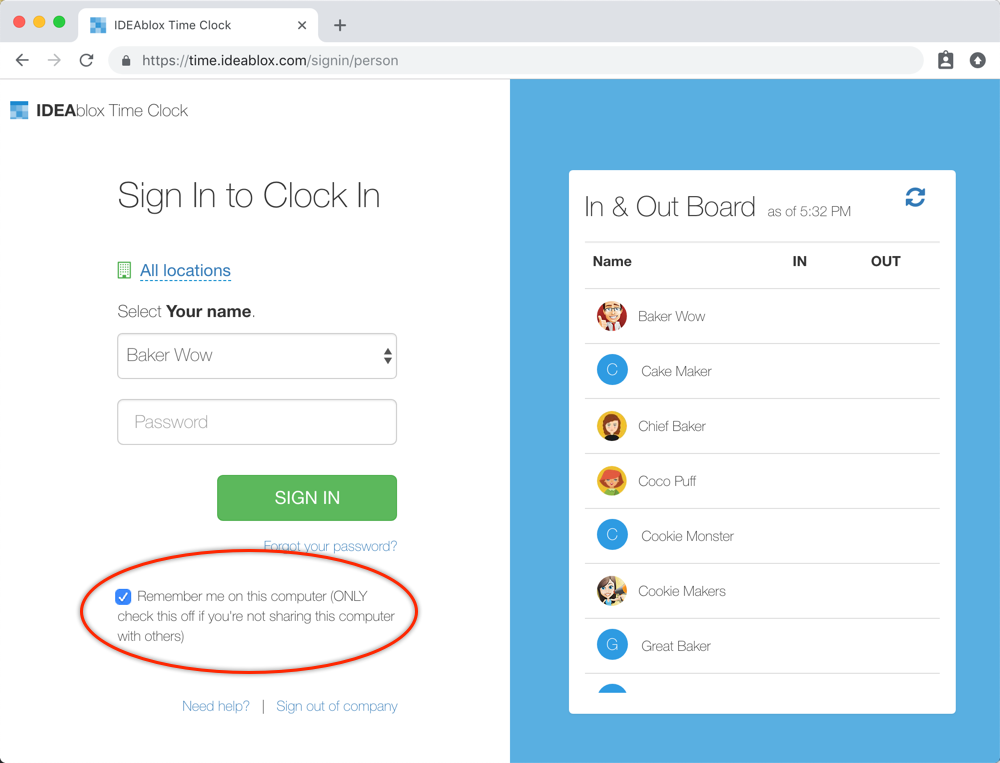
If your employees use the time clock on their own computers, they can stay logged in so they don’t have to type their password every morning. They just check the “keep me logged in” box the first time they sign in.
Why and how to create a company ID for logging in
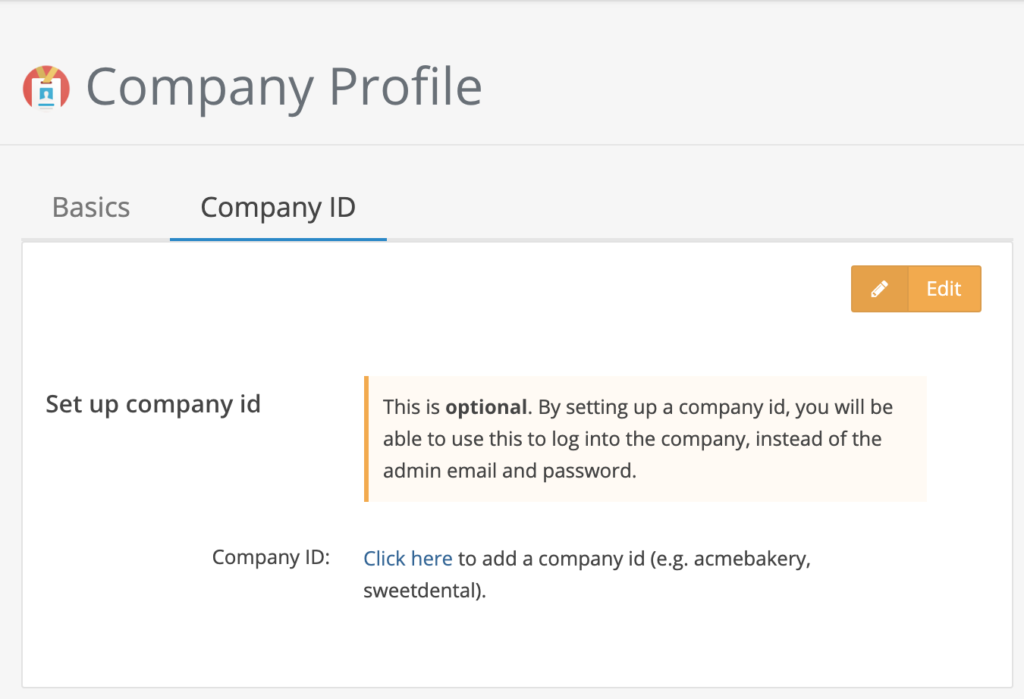
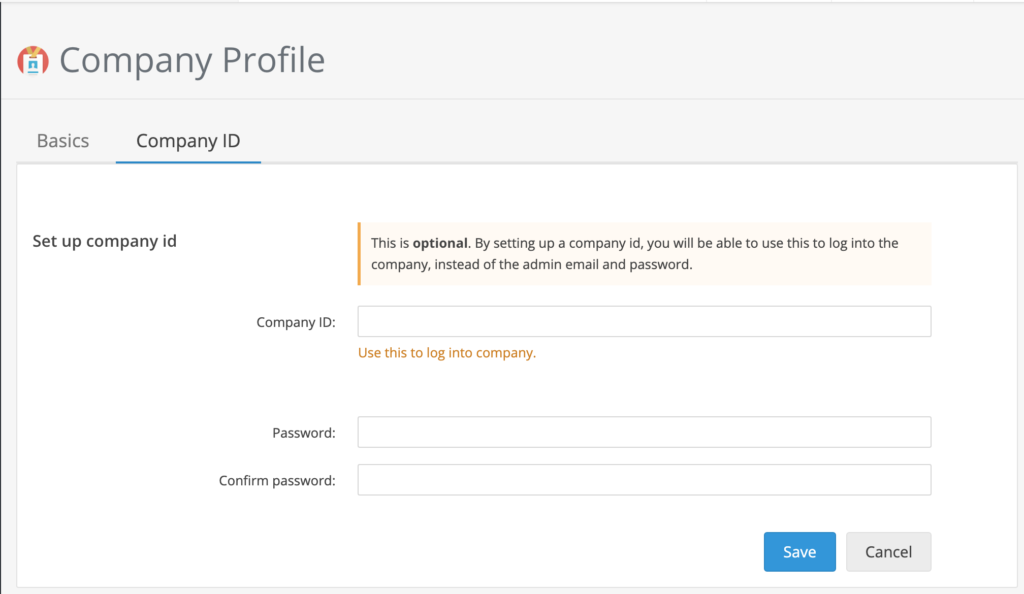
Admins and employees can use a company ID to log into the company when the admin’s email and password isn’t ideal — for example, when you trust staff to sign in at the office. They can use the company ID instead of asking you to log in first.
The company ID does not give anyone access to the admin’s account or anyone else’s.
To create one:
- Log in with your admin account.
- Go to Company Basics.
- Click Edit to create your company ID. That’s it — you’re done.
This is what the company ID page looks like:
Time off (PTO)
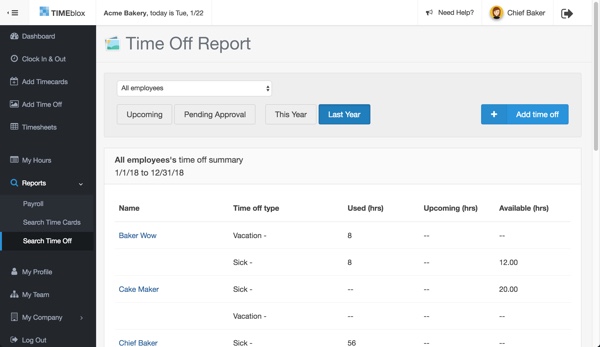
How to see time off (PTO) reports
Manage and review your employees’ time off and accrued balances. The reports let you:
- See all or one employee’s time off requests and available PTO balance.
- See upcoming time off days.
- See requests that are waiting for approval.
Here’s what the report looks like:
How to delete time off requests
Admins and managers can delete time off requests; other employees can’t.
- Go to the Search Time Off report.
- Select the person and the “This year” button to see their requests.
- Click the trash icon on the right to delete a request.
How to add time off policies
Create time off policies so employees can request time off and managers can approve them.
- Go to Time Off Setup.
- Click the “Add time off type” button.
Timesheets & editing
How to edit a timesheet
As an admin you can edit any timesheet — change the time or delete it. A history of changes is kept so everyone can see what happened.
How to delete a time card
As an admin, open the time card on the timesheet and choose delete. Like an edit, the deletion is recorded in the entry’s history, so there’s always a record of what changed.
How to change edit-timesheet permissions
As an admin you can change who may edit time cards. Employees can’t edit by default, but you can grant it — there are a few permission settings to choose from.
Payroll & reports
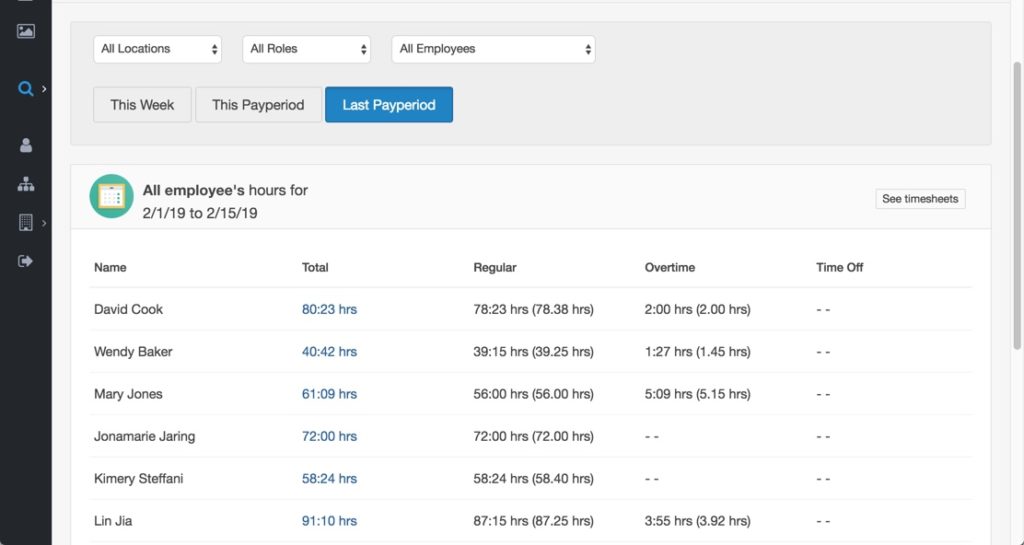
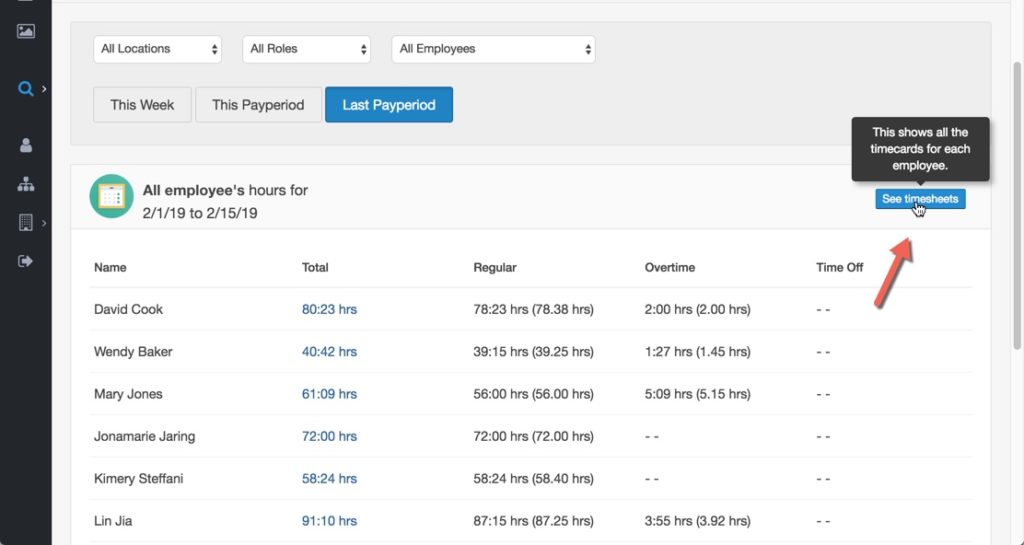
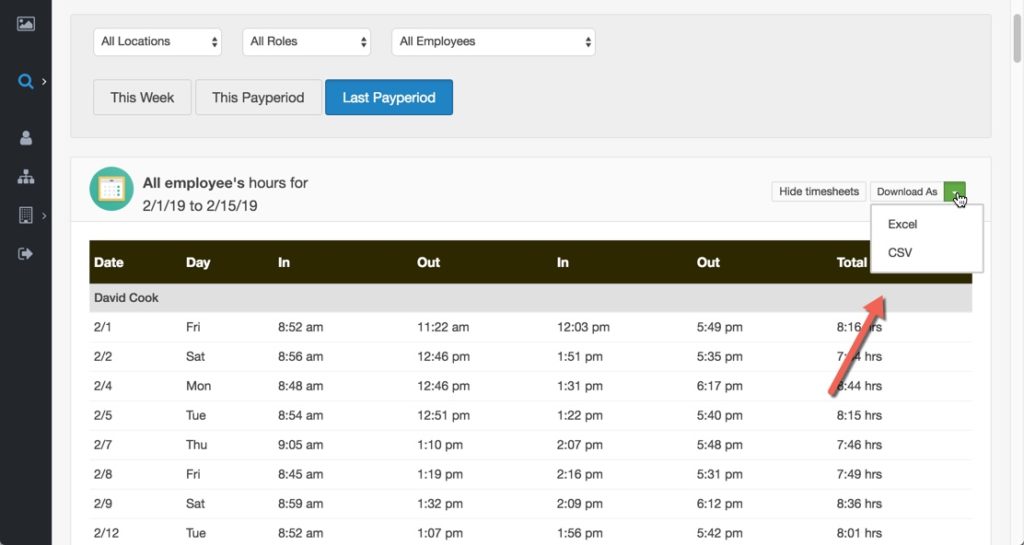
How to download payroll reports (Excel or CSV)
Downloading payroll reports is quick:
- Go to the payroll report page and click the payroll period to open the report.
- Click “See timesheets,” then use the Download option to save it as Excel or CSV.
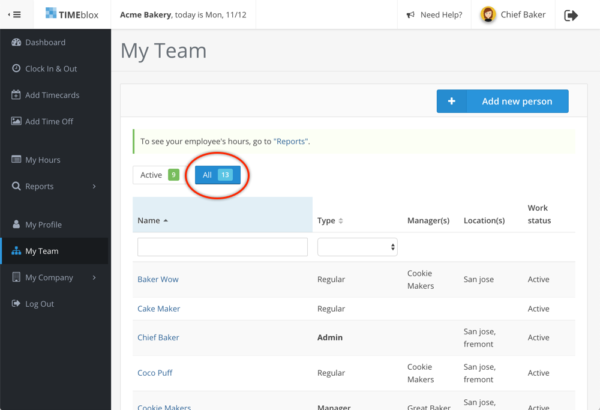
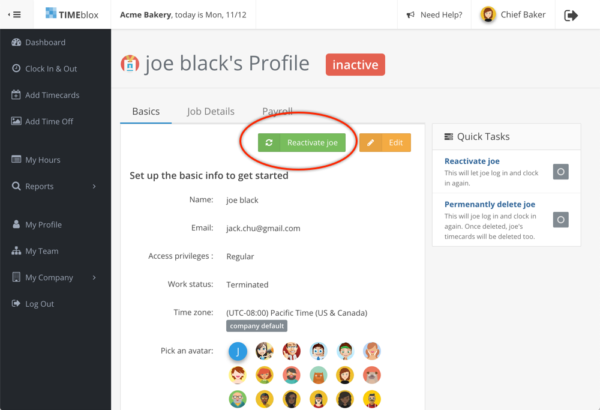
How to get an ex-employee’s time card reports
To pull time card reports for former employees:
- Log in as the admin.
- Go to the My Team page.
- Click the “All” button to show ex-employees.
- Change the person’s work status back to active.
- Run reports as usual.
How to set up payroll period options
Companies have different payroll periods, and you can set overtime policies here too. The four most common periods we support are:
- Weekly
- Bi-weekly (every 2 weeks)
- Semi-monthly (twice a month)
- Monthly
People & company settings
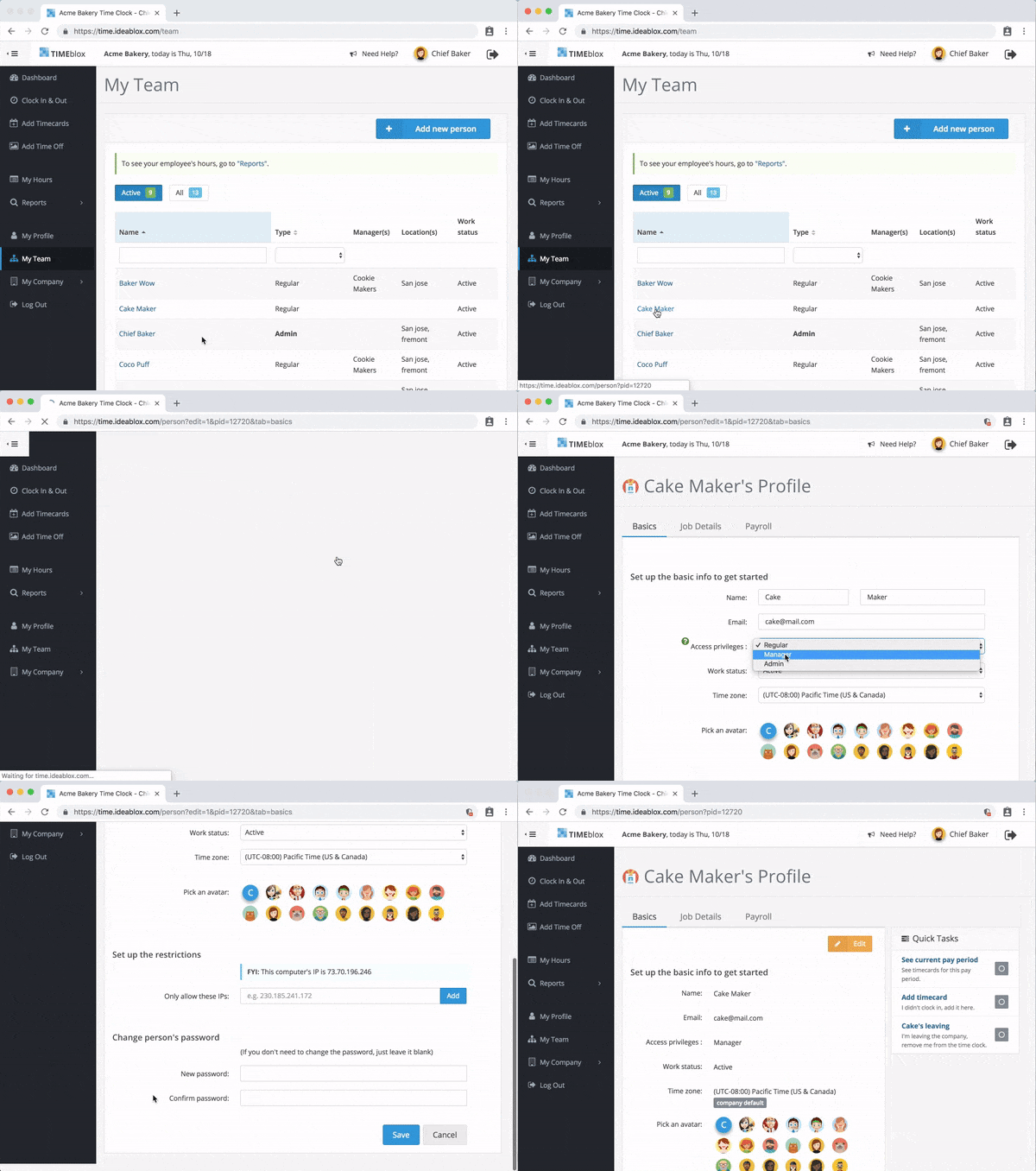
How to make someone a manager
As an admin you can make an employee a manager and set what they’re allowed to do. A manager can:
- Approve people’s timesheet-change requests.
- See their team’s timesheets.
- Add new employees to their team.
Go to the My Team page, then open the person’s profile to make them a manager.
How to change employee profiles
You can change the following for your employees:
- Name and email
- Access privileges
- Work status
- Time zone
- Password
- Manager
How to stop people clocking in on mobile phones
You can turn off mobile-phone clock-in for the whole company, or just for certain employees.
For the whole company
- Log in as the admin.
- Go to Company Setup.
- Click “Edit” to change mobile access.
For certain employees
- Log in as the admin.
- Go to My Team and select the employee.
- Click “Edit” to change mobile access.
No articles match that search. Try different words, or email us.
Still need a hand?
A real person answers, usually the same day — even on Saturdays.